Getting Started with NudgeFlow
Your step-by-step guide to practising client conversations, receiving real-time coaching, and tracking your performance — all in a safe, risk-free environment.
Welcome to NudgeFlow
NudgeFlow is an AI-powered roleplay training platform designed for financial advisors. It lets you practise realistic client conversations at your own pace, with an AI client who responds naturally to what you say. As you talk, a built-in coach tracks your progress against clear learning objectives and gives you hints along the way. When the session ends you receive a detailed performance report with an overall score, objective grades, and personalised feedback.
Whether you are preparing for a regulatory discussion, practising how to handle a nervous investor, or building confidence with a new product area, NudgeFlow gives you a place to rehearse without real-world consequences.
Step 1 — Choose Your Training Scenario
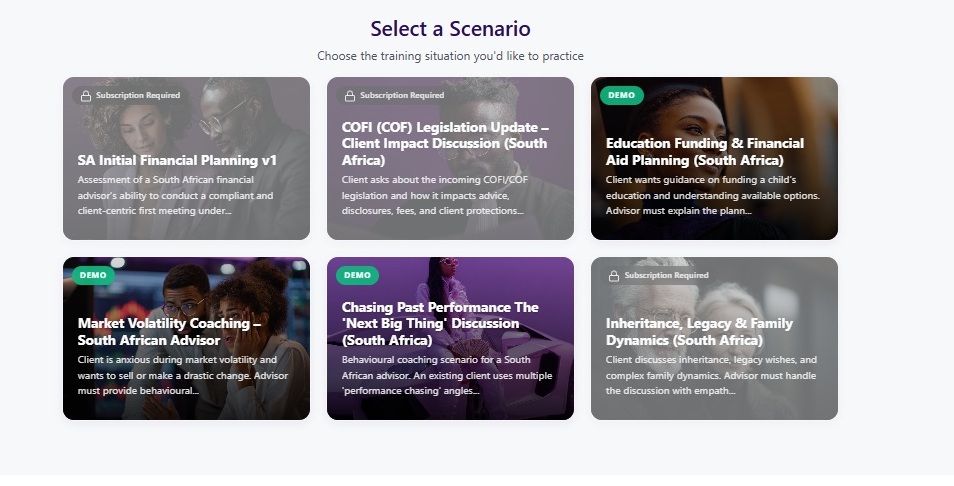
When you click New Scenario in the navigation bar you are taken to the scenario selection screen. Scenarios are displayed as cards in a grid. Each card shows the scenario title and a brief description of the situation you will be practising.
Browse the available options and click the card that matches the skill or topic you want to work on. The selected card will highlight to confirm your choice.
Step 2 — Select a Client Profile
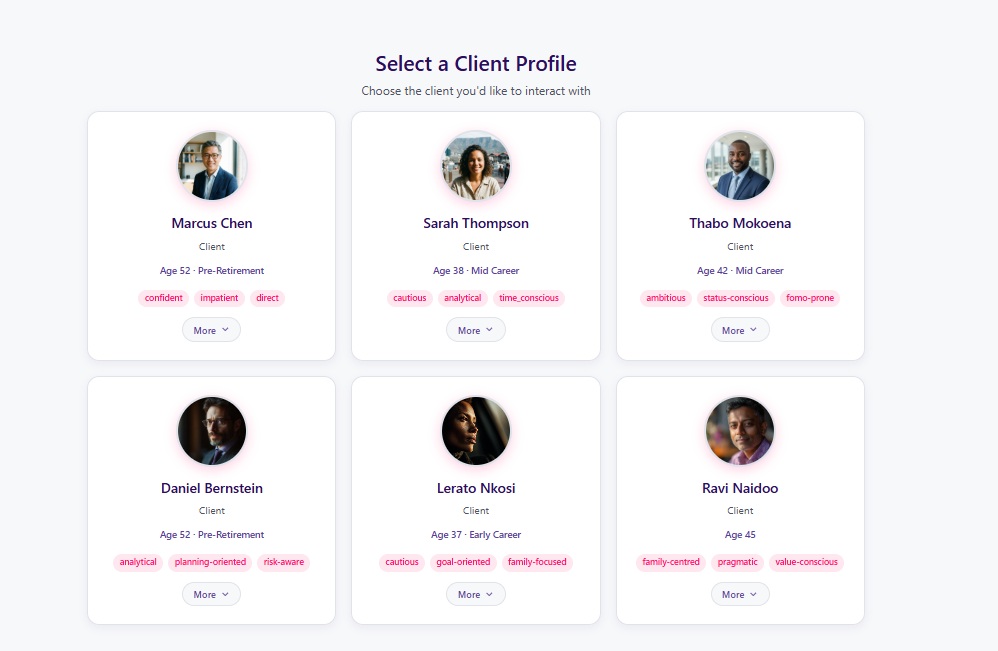
After choosing a scenario, a second row of cards appears showing the available client profiles. Each client has a unique personality, background, and communication style that makes the conversation feel realistic.
Some clients may be cautious and ask lots of questions; others may be confident and want to move quickly. Select the client you would like to interact with by clicking their card.
Step 3 — Start Your Training Session
Once you have selected both a scenario and a client, two buttons become available at the bottom of the page:
Voice Mode
Speak naturally using your microphone. The AI client listens to what you say and responds with a realistic voice. This is the recommended mode for the most immersive experience.
Silent Mode
Type your responses instead of speaking. The AI client replies with text only. This is useful in quiet environments, shared spaces, or for accessibility.
Click your preferred mode to launch the training session.

The Conversation Interface
The training screen is where the conversation takes place. Messages appear in a scrolling transcript as you and the AI client exchange dialogue. A controls bar sits below the conversation area with:
- Status indicator — shows whether the system is listening, processing, or waiting
- Microphone level — a visual meter so you can confirm your mic is picking up your voice (Voice Mode only)
- Start / Stop button — controls recording in Voice Mode, or sends your typed message in Silent Mode
- Report button — ends the session early and generates your performance report
The conversation flows naturally. Simply respond to the client as you would in a real meeting. The AI will react to what you say, ask follow-up questions, and may raise concerns or objections depending on the client’s personality.

Your AI Coach
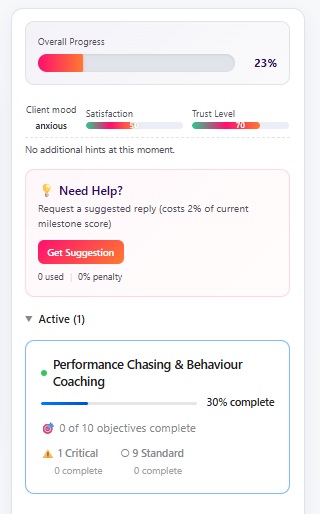
On the right-hand side of the conversation screen you will find the Coach Panel. This is your real-time training assistant that tracks how the session is going:
- Learning milestones — a checklist of objectives you need to address during the conversation, updated live as you cover each one
- Progress bar — shows your overall completion across all milestones
- Coaching hints — contextual suggestions that appear as the conversation progresses, guiding you toward topics you haven’t covered yet
- Suggested replies — if you get stuck, you can reveal a suggested response to help move the conversation forward
The coach panel is there to support you, not to judge you. Use it as a guide to make sure you cover all the important points during the session.
Your Session Report
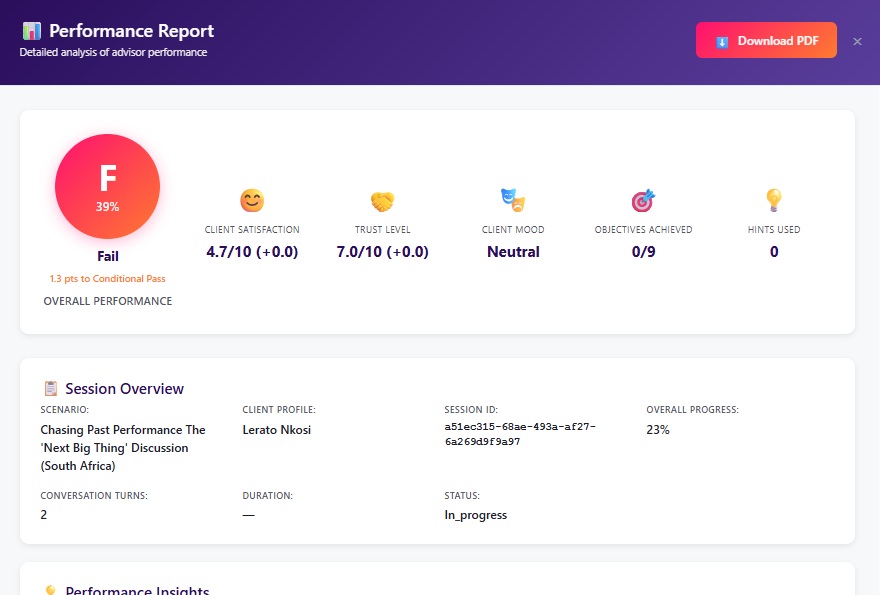
When the conversation ends — either naturally or when you click the Report button — NudgeFlow generates a detailed performance report. The report includes:
- Overall score and grade — a single number and classification summarising your performance
- Per-objective grades — how well you covered each required topic, with AI-generated justification
- Interaction quality scores — ratings across six communication dimensions (see below)
- Performance insights — personalised feedback highlighting your strengths, areas for improvement, and a recommended focus area for your next session
Understanding Your Score
Your final score is calculated from two equally-weighted components:
- Objective coverage (50%) — did you address the required topics with sufficient depth?
- Interaction quality (50%) — how well did you communicate across six dimensions?
Grade Boundaries
| Grade | Score Range | What It Means |
|---|---|---|
| Distinction | 85 – 100 | Outstanding performance across all areas |
| Merit | 70 – 84 | Strong performance with minor gaps |
| Pass | 55 – 69 | Competent performance meeting core requirements |
| Conditional Pass | 40 – 54 | Below target; specific areas need improvement |
| Fail | 0 – 39 | Significant gaps in multiple areas |
Interaction Quality Dimensions
Your communication is scored across these six areas:
| Dimension | What It Measures |
|---|---|
| Clarity | Clear, jargon-free language; concepts explained simply |
| Confidence | Authoritative without being arrogant; comfortable with uncertainty |
| Enthusiasm | Engaged tone; genuine interest in helping the client |
| Pacing | Appropriate speed; pausing for understanding; not rushing |
| Subject Matter Expertise | Accurate knowledge; correct information |
| Relevance | Responses connect to the client’s specific situation |
Setting Up a Training Scenario
The Scenario Studio is a form-based editor for creating and managing the training scenarios that trainees practise with. Each scenario defines the situation, learning objectives, and conversation rules for a session. You can access it from the Config menu in the navigation bar under Config > Scenario.
When you open the Scenario Studio, a sidebar on the left lists all existing scenarios with a search box for filtering. Click any scenario to load it for editing, or click New to start from scratch.
Overview Settings
Every scenario starts with basic details: a title, domain (such as financial advice or healthcare), a description of the learning objectives, language, and the maximum number of conversation turns. There is also a demo mode toggle that makes the scenario available to unpaid demo users.
Defining Roles
Each scenario defines two roles. The trainee role describes who the learner is playing (for example, “Financial Advisor”) along with a description of that role. The AI client role describes the character the AI will portray during the conversation. These role descriptions set the context and tone for the entire session.
Client Requirements
You can optionally restrict which client profiles are eligible for a scenario. Requirements include:
- Age range — minimum and maximum age for the client
- Required traits — personality traits the client must have (e.g., cautious, analytical)
- Excluded traits — personality traits the client must not have
- Life stages — such as Early Career, Mid Career, or Pre-Retirement
- Domain knowledge — the client must have a domain context defined for the relevant field, with optional minimum knowledge levels
When a trainee selects this scenario, only client profiles that satisfy these requirements will appear as options.
Milestones and Objectives
Milestones are the core of a scenario. They represent the learning stages a trainee must progress through during the conversation — for example, Rapport Building, Needs Assessment, and Recommendation. Each milestone contains one or more objectives that define what the trainee must cover:
- Coverage — topics the trainee should discuss with the client
- Compliance — regulatory or process requirements that must be addressed
- Quality — communication standards such as clarity or empathy
Objectives can be marked as required or optional, and negative objectives define things the trainee must not do (for example, giving specific product advice without completing a fact-find). Milestones can also have dependencies on one another, and some can be flagged as global so they can be satisfied at any point during the conversation.
Conversation Settings
Control how the conversation behaves and ends. Termination mode can be set to soft (the AI generates a natural closing) or hard (a predefined template is used). You can choose when termination triggers — when all required objectives are met, when the maximum turn count is reached, or either condition. A graceful wind-down setting gives the conversation a few turns to wrap up naturally before ending. You can also set a maximum response length for the AI client and define forbidden patterns the AI should avoid in its replies.
Scoring Configuration
Set the pass mark percentage and adjust how the final score is weighted between three dimensions: coverage (did the trainee address the right topics?), compliance (were process requirements met?), and quality (how well did they communicate?). You can also configure how negative objective violations are handled — by deducting points, failing the milestone, or failing the entire scenario.
Useful Features
- Clone — duplicate an existing scenario to use as a starting point for a new one
- Undo / Redo — step backwards and forwards through your changes
- Raw JSON — view and edit the complete scenario data directly for advanced configuration
Creating Client Profiles
The Client Profile Studio is where you build the AI client personas that trainees will interact with during training sessions. Each profile defines a realistic character with their own personality, background, and behavioural patterns. You can access it from Config > Client in the navigation bar.
Like the Scenario Studio, a sidebar lists all existing profiles with search. Click a profile to edit it, or click New to create one from scratch.
Identity and Demographics
Ground the character in a realistic context by setting their name, age, life stage (such as Early Career or Pre-Retirement), occupation, education level, location, and marital status. These details inform the AI’s conversational style and the topics it naturally gravitates toward.
Personality
Define the character’s core personality through several dimensions:
- Personality traits — tags such as cautious, analytical, trusting, or impulsive
- Communication style — verbose, balanced, or concise
- Formality — formal, neutral, or casual
- Emotional baseline — the client’s default emotional state (e.g., anxious, relaxed, guarded)
- Trust level — from sceptical through to trusting
- Conflict style — avoidant, accommodating, assertive, or confrontational
- Decision style — impulsive, intuitive, analytical, collaborative, or avoidant
Together, these shape how the AI client responds throughout the conversation — a guarded, analytical client behaves very differently from a trusting, impulsive one.
Behavioural Triggers
Define how the client reacts in specific situations to create consistent, realistic behaviour:
- When confused — how the client responds to unclear information
- When pressured — their reaction to being rushed or pushed toward a decision
- When rapport is built — how they open up once they feel comfortable
- When jargon is used — their response to unexplained technical terms
- When contradicted — how they handle having their beliefs challenged
- When asked personal questions — their reaction to intrusive or sensitive enquiries
- When given bad news — how they respond to disappointing information
Response Style
Fine-tune how the client communicates by setting their typical response length (short, medium, or long), verbosity, and emotional reactivity. You can also toggle whether the client uses humour and whether they naturally ask follow-up questions.
Motivations and Constraints
Set the client’s primary and secondary motivations — the goals driving them to seek advice. Add fears and concerns that may come up during the conversation. You can also define time constraints and topics the client will avoid or deflect when raised.
Domain Contexts
Each client can have one or more domain-specific backgrounds — for example, a financial services context or a healthcare context. Each domain context includes:
- Backstory — the client’s background relevant to this domain
- Current situation — what has brought them to seek help now
- Past experiences — previous interactions (good or bad) with professionals in this area
- Knowledge levels — how much the client understands about specific topics within the domain
- Goals and concerns — what they want to achieve and what worries them
- Hidden objections — concerns the client will only voice once sufficient trust has been established
For financial domains, additional fields are available for income, savings, debts, investments, pension, property value, and emergency fund.
How Scenarios and Clients Connect
When a trainee selects a scenario, only client profiles that match the scenario’s requirements (personality traits, age range, life stage, and domain context) appear as available options. This means content creators should ensure that client profiles cover the domains and traits required by the scenarios they are intended to pair with. A single client profile can be compatible with multiple scenarios, and a single scenario can work with many different clients — giving trainees varied practice experiences.
Useful Features
- Clone — duplicate a profile to create variations (e.g., a similar client with different personality traits or financial circumstances)
- Undo / Redo — step backwards and forwards through your changes
- Raw JSON — view and edit the complete profile data directly for advanced configuration
Tips for Your First Session
- Listen carefully — the AI client will signal which topics to address through their questions and concerns
- Speak clearly — avoid jargon, or explain technical terms when you use them
- Check in with your client — periodically ask “Does that make sense?” or “How do you feel about that?” to build rapport
- Don’t rush — take your time to address topics with depth rather than speed
- Use the coach panel — keep an eye on the milestones and hints to stay on track
- Vary your language — avoid repeating the same phrases; each response should add new information or perspective
- Focus on learning, not perfection — your first session is practice. Use it to get comfortable with the platform and the feedback it provides
Need Help?
If you have questions or need support, please contact us at contact@nudgeflow.ai.
NudgeFlow is continually updated with new scenarios, client profiles, and features. Check back regularly for the latest training content.